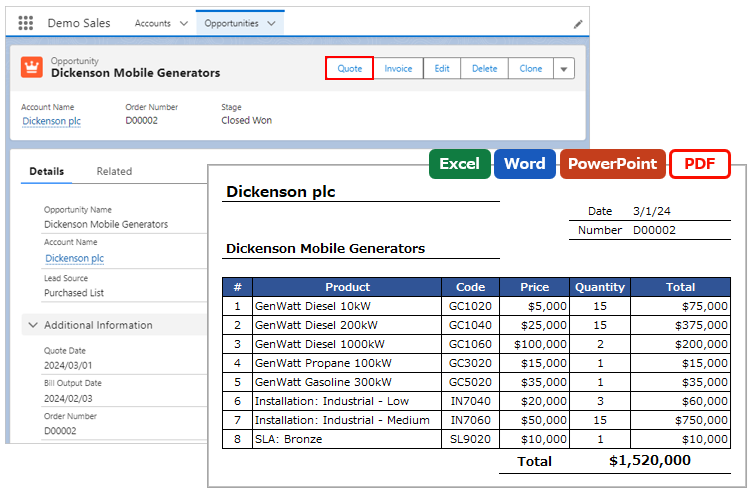
When outputting child records, output in a multi-line layout per record.
*This feature is available in Office File Creator Pro.
Overview
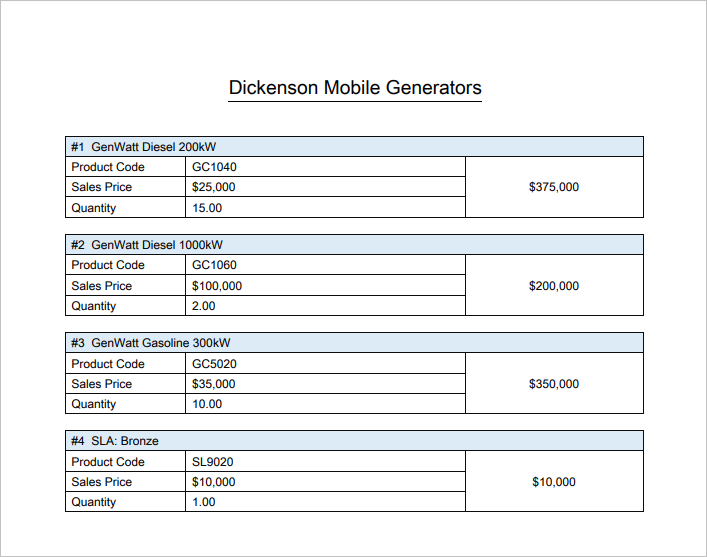
Normally, each child record is output on one line. By setting multiple lines of child record merge fields in the template file, they can be output as a block.
Examples of Use
- Output 3 lines per child record.
Required settings
- Merge Fields Settings
Merge Fields Settings
Block Layout Settings (multiple lines per record)
Set multiple lines of merge fields of the child object in the template file. The first to last row of the child object merge field becomes one block of the child record.
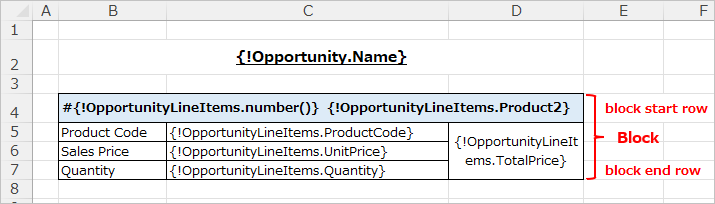
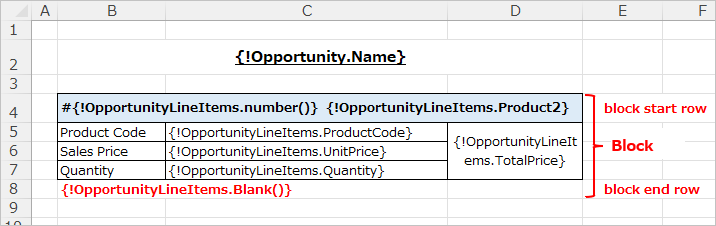
To insert blank lines between blocks of child records, use the Blank() function for the merge field.
e.g. {!OpportunityLineItems.Blank()}
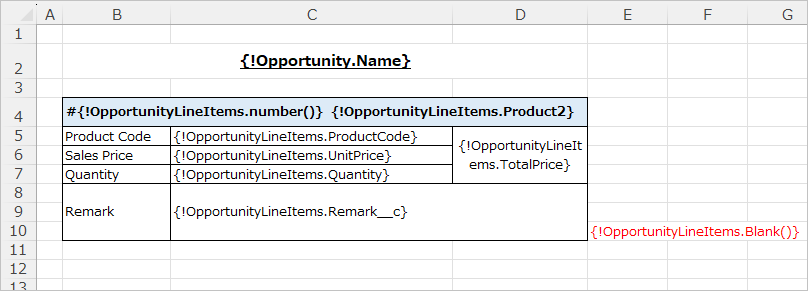
Excel Consideration
When outputting to Excel, if the cells in the last row are merged, cell merging is not taken into account in determining the last row. Adjust the last row of the block by setting the Blank() function outside the last row of the table.
Word/PowerPoint/PDF Consideration
When outputting Word/PowerPoint/PDF, all merge fields of the same child object should be set in a single table.
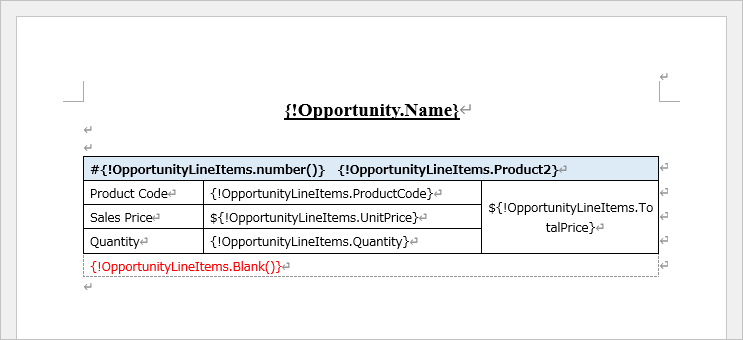
Incorrect example: The following case will be an error because the child object merge field "{!OpportunityLineItems.Blank()}" is outside the table.
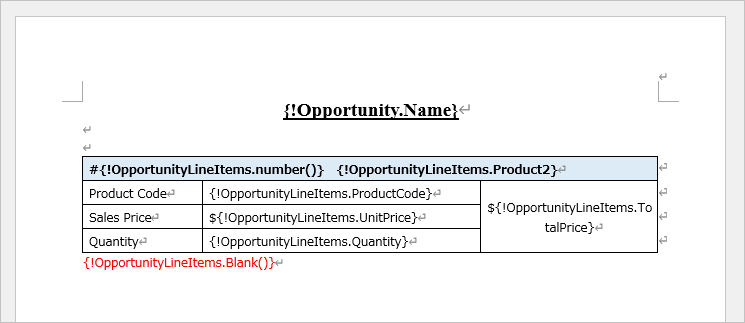
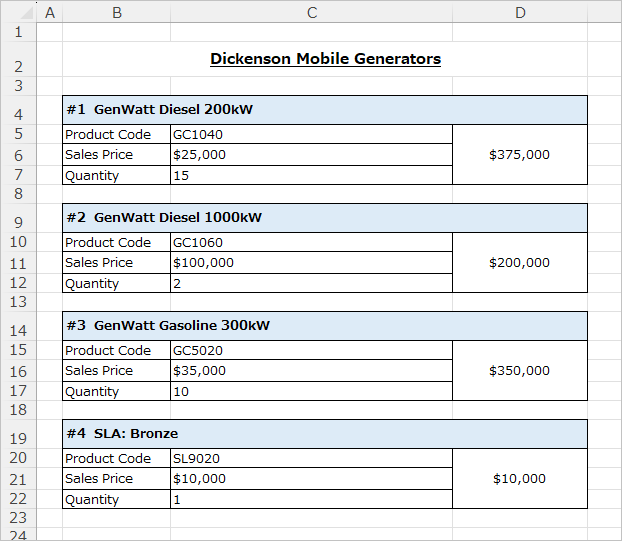
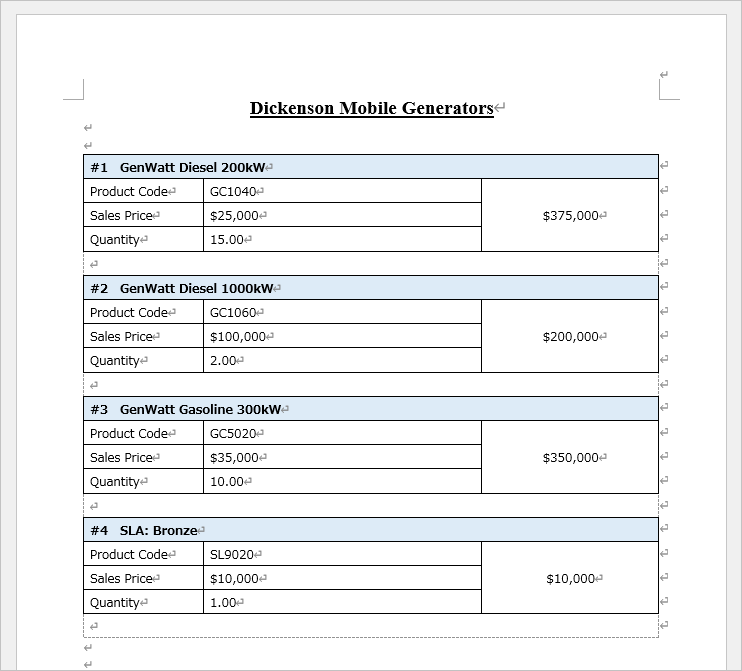
Output Sample
Excel
Word
Considerations
- When outputting blocks, Office features such as Excel formulas, Data Validation, and Conditional Formatting cannot be used. If they are used, they will be misaligned or cause an error in the output.
Reference
Output Child Records in Block Format Layout