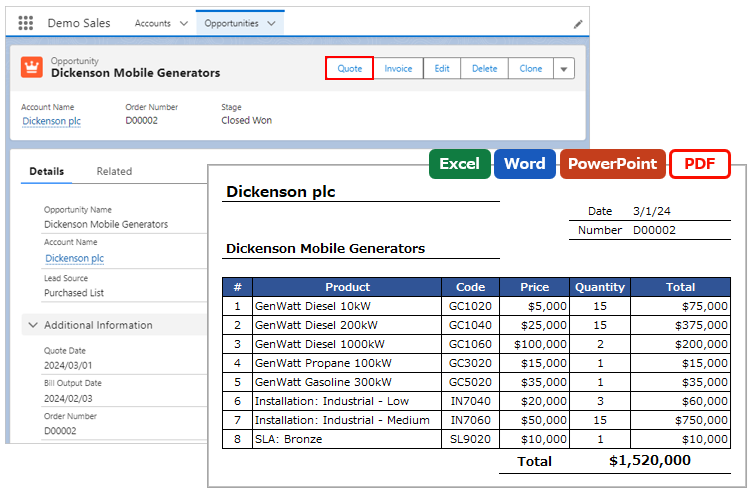
For PDF output, create the template file in Word (.docx).
*Please check the Template Common Settings before referring to this page.
Formatting of Merge Fields
For formatting Date, Date/Time, Currency, and Number fields, refer to the following.
Formatting of Date and Date/Time Fields
Formatting of Currency and Number Fields
Line Spacing
Uncheck "Snap to grid when document grid is defined" under Paragraph > Indents and Spacing in the Word template file. When checked, the line spacing is quite wide in the output.
- Select all existing contents in the template with "Ctrl+A" and clear the check box in the Paragraph dialog.
- Clear the check box in the Paragraph dialog for each style you use, such as the Normal style.
Tables
Borders
- If extra borders are output, set the color of the corresponding borders to white. The application generates PDFs using Salesforce Visualforce, and due to a limitation of Visualforce, the results may not always be as expected.
- If table borders are not output, set the borders again from the Table Properties. On the Word template, the borders of adjacent cells are displayed and the borders of the target cell may not be set.
Position of Text in Cell
When setting the vertical position of text in a cell, set the Table Properties and Paragraph.
Align text in cells to the center (vertical)
- From Table Properties > Cell tab, set the Vertical alignment to "Center"
- From Paragraph > Indents and Spacing tab, set the Line spacing to "Single"
Align text in cells to the bottom
- From Table Properties > Cell tab, set the Vertical alignment to "Bottom"
- From Paragraph > Indents and Spacing tab, set the Line spacing to "Exactly" and adjust the "At" value
Cell Size
From Table Properties > Table tab > Options, uncheck "Automatically resize to fit contents".
Consideration
- If the layout is broken after copying a table from another application, create a new table inside the Word template.
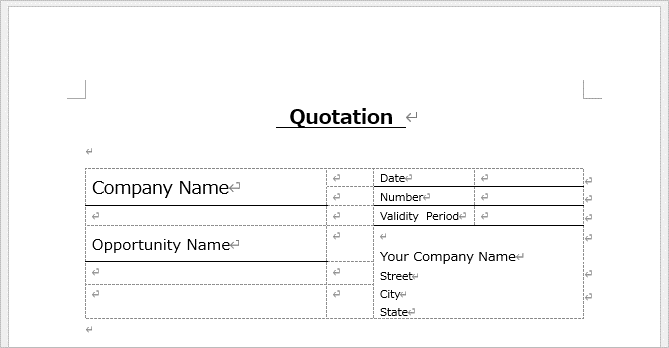
- For different layouts on the left and right sides, create a single table and set it up by dividing cells and displaying/hiding table borders. Tables cannot be placed side by side, nor can text be displayed next to a table.
Layout Example
Layout Example (cell division, showing/hiding borders)
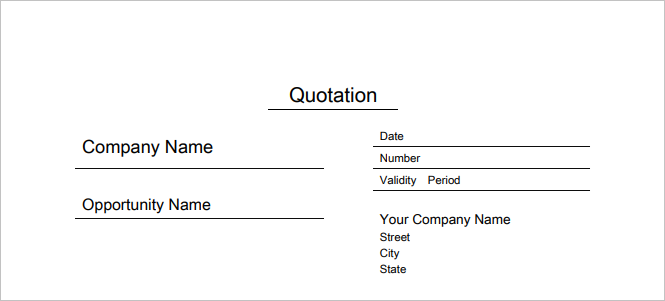
Output result
Striped Layout
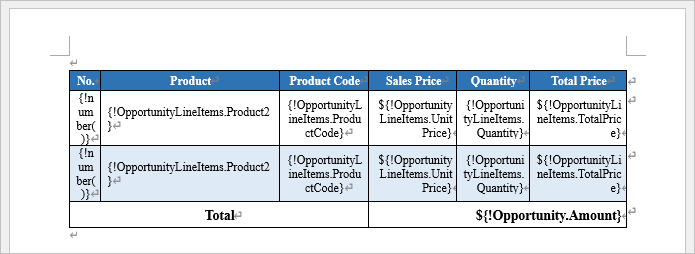
To output a child object table with alternating row colors, set two rows of child object merge fields. For the second row, set the same merge fields as in the first row.
Font
- The following four PDF fonts can be used for PDF output. If other fonts are used in the Word template file, it is output in the font specified in the "PDF Default Font" field of the OFC_Template record.
- When using multibyte characters such as Japanese, only Arial Unicode MS can be output.
| Word Font | PDF Font |
| Arial | Arial Unicode MS |
| Microsoft Sans Serif
Tahoma Helvetica |
Helvetica (sans-serif) |
| Times New Roman
Times Century |
Times (serif) |
| Courier New
Courier Monospace |
Courier (monospace) |
Images (company logo, seal, etc.)
- Template files can include images such as company logos.
- Objects such as shapes and text boxes are not supported. Right-click on the object and select "Save as Picture" to save it as an image and replace the object with an image.
- Images cannot be output over text.
- The output direction of the image will be the original orientation of the image. The rotation direction in the Exif information of the image will not be reflected.
Page Number/Page Count
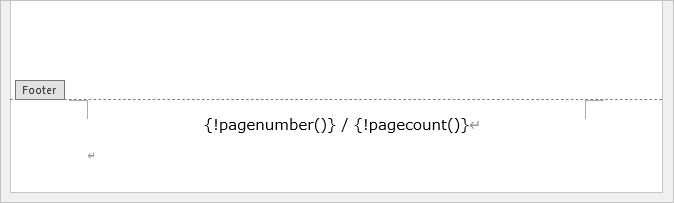
Use the following merge fields in the footer or header for page numbers and the total number of pages. Word field codes are not supported.
Page Number: {!pagenumber()}
Page Count: {!pagecount()}
Template Sample
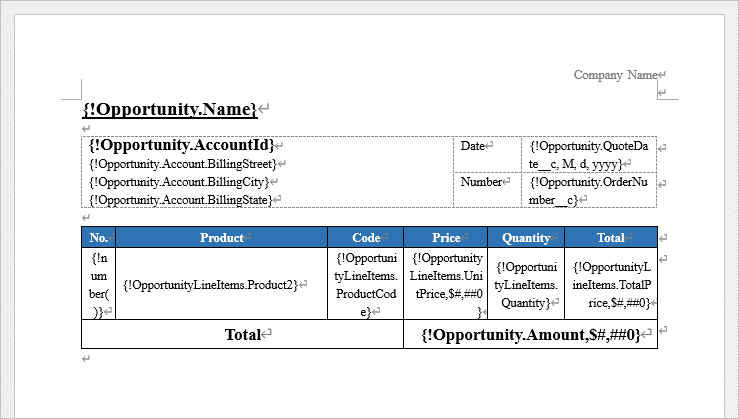
Download Sample Template Files

Limitations
- At a page break, the table borders on the last row of the previous page or the first row of the next page may be cut off.
- Spacing created with tabs in Word is not supported.
- If the layout is broken after copying a table from another application, create a new table inside the Word template.
- Tables cannot be placed side by side, nor can text be displayed next to a table. For different layouts on the left and right sides, create a single table and set it up by dividing cells and displaying/hiding table borders.
- Arial Unicode MS does not support bold or italic styling.
- User-defined characters (gaiji) are not supported.
- Office features such as objects (text boxes, shapes, etc.), field codes, and watermarks are not supported.
- Images cannot be output over text.
- The output direction of the image will be the original orientation of the image. The rotation direction in the Exif information of the image will not be reflected.
Reference
Generate a PDF file in Salesforce using Office File Creator
Troubleshooting
- The line spacing is too wide in the output.
- A one-page template is output as a two-page PDF.
- A blank page is output in PDF.
- The layout is corrupted.
- The borders of the table are not displayed.
- Extra borders of the table are displayed in PDF.
- The borders of the table are broken at page breaks in PDF.
- In Acrobat, the thickness of table borders is not displayed uniformly in PDF.
- The row height of the table is too short in the output.
- The text in the table is not centered (vertically) or bottom-aligned.
- Merge fields in the table are not wrapped and the columns extend horizontally.
- The text is misaligned.
- The seal image overlaid on the text is output out of alignment.
- The company logo image is not output.
- A portrait-oriented image is output as landscape in the PDF.
- Text boxes and shapes are not output.
- Watermarks are not output.
- Double-byte characters are not output in PDF.
- "common.apex.runtime.impl.ExecutionException" is displayed.