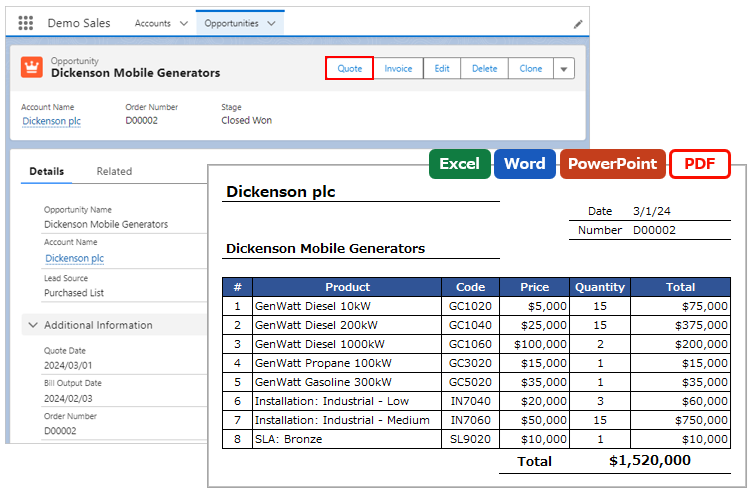
When a file is output, it can be attached to a record and saved in Salesforce as a File object (File) or Memo and Attachment (Attachment) record.
Saving Files from the Custom Button
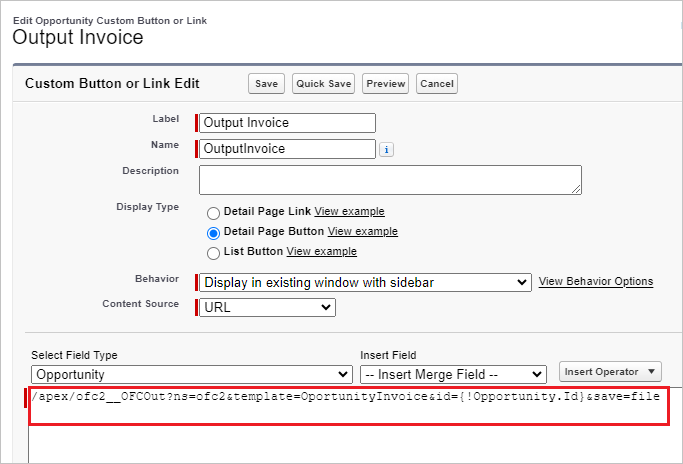
When creating the custom button, use the link for saving the file in the OFC_Template record in the URL of the custom button. For instructions on creating a custom button, refer to Create Custom Button.
Link URL for Custom Button
- Custom Button URL (Save as File): Attach to a record and save in the File object.
- Custom Button URL (Save as Attachment): Attach to a record and save in the Memo and Attachment object.
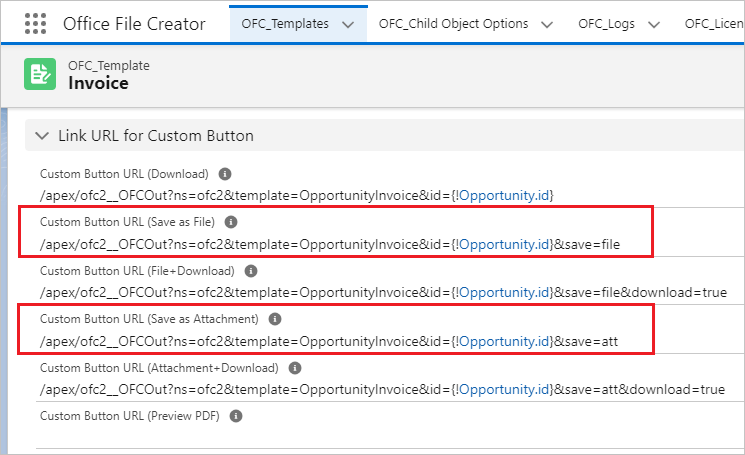
Custom Button Setting Screen
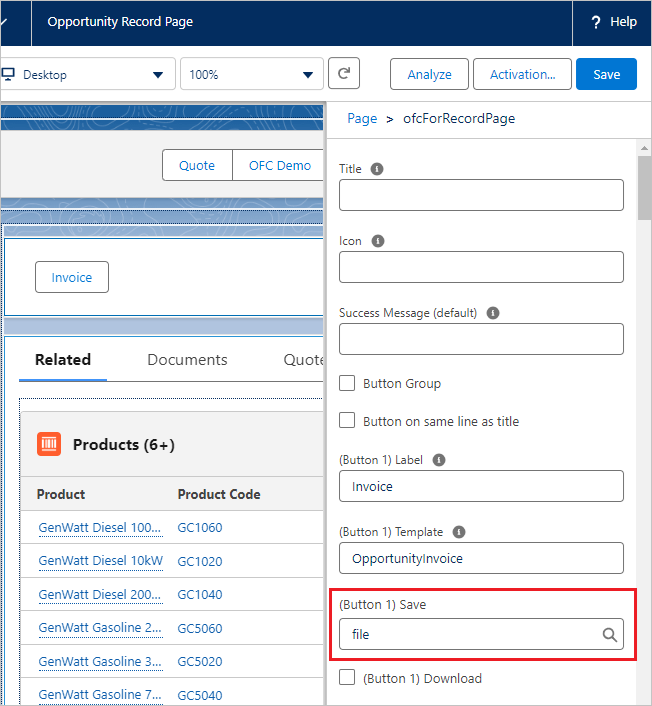
Saving Files from the Lightning Component Button
When creating the Lightning component button, set the "(Button XX) Save" property of the ofcForRecordPage component to "file" or "attachment". For instructions on creating a Lightning component button, refer to Create Lightning Component Button.
"(Button XX) Save" property
- file: Attach to a record and save in the File object.
- attachment: Attach to a record and save in the Memo and Attachment object.
Access Permissions for Files Attached to Records
Set access permissions for the file (File object) attached to the record. Enter the values in the "(Optional) Save as File" section of the OFC_Template record.
File Access to Linked Record: Select "Viewer" or "Set by Record". The default is "Viewer".
- Viewer
Users with read access to the record get viewer access to the files attached to the record.
- Set by Record
- Users with read/write access to a record get collaborator access to the files attached to the record.
