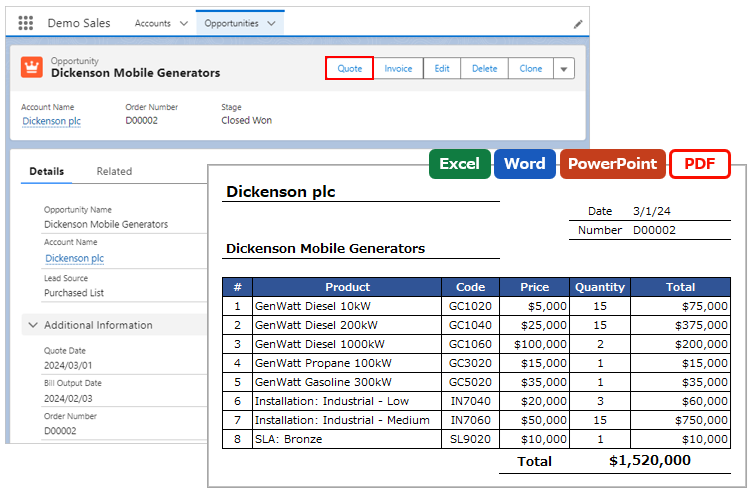
Migrate resources such as custom buttons, OFC_Template records, etc. from the Sandbox to the production environment.
9.1. Resources & How to Migrate
| Resources | Details | How to Migrate |
| Custom Button | Custom button created on the target object | Change set or migration tool. |
| Page Layout | Page Layout with the custom button | Change set or migration tool. |
| Permissions | Permissions for Office File Creator | Manually grant permissions for custom objects, fields, etc. to profiles.
If you have created a permission set for Office File Creator, grant the permission set to the target user after migrating the permission set with a change set or migration tool. |
| Template Record | OFC_Template record, OFC_Child Object Option record | Data Loader.
|
| Template File | Attachment record | After creating the OFC_Template record in the production environment, upload the file from the OFC_Template record page, or use Data Loader.
*If the output format is PDF, upload from the OFC_Template record screen. Uploading with Data Loader is not available. *The free version allows template files to be uploaded only from the OFC_Template record screen. |
Migration of Template Files
To migrate a template file using Data Loader, set Attachment.Id to the "Template File Id (system)" field (API name: TemplateFileId__c) in the OFC_Template record.
- Create OFC_Template record.
- Create Attachment record. Set OFC_Template__c.Id to the ParentId field.
- Update TemplateFileId__c in OFC_Template record to Attachment.Id.
*The TemplateFileId__c field is hidden in the OFC_Template page layout.
9.2. References
Please refer to the official Salesforce help page below for more information on change sets and Data Loader.
Deploy change sets from sandbox to production
https://help.salesforce.com/s/articleView?id=000315564&type=1
Data Loader Upload Attachments
https://developer.salesforce.com/docs/atlas.en-us.dataLoader.meta/dataLoader/loader_attachments.htm